How to Trim a Video on Your Phone or Computer
How do you trim a video on your phone or computer? Open the clip, move the start and end handles on the timeline, then save the section you want to keep. To turn a 12-second recording into a seven-second clip, for example, keep everything from 0:02 to 0:09.
How to trim a video on iPhone or Android
On iPhone, open the video in Photos and tap Edit. Drag the timeline handles to set the new beginning and end. Play the selection to check both cuts, then tap Done and choose Save Video as New Clip to keep the original in your library.
On Android, open your video in Google Photos and drag the trim handles underneath the preview. Tap Save to create an edited copy. In Samsung Gallery, tap the pencil icon first to see the editing controls and shorten the clip.
How to trim a video on Windows or Mac
On Windows, open the file in Microsoft Photos and select Trim (Ctrl + E). Move the handles and save a copy. On a Mac, open the video in QuickTime Player, choose Edit → Trim, drag the yellow handles, then click Trim and save the result.
| Goal | What to do |
|---|---|
| Remove a pause at the start or end | Trim the clip using the two timeline handles. |
| Remove a section from the middle | Split at both ends of the section, delete it, and join the remaining clips. |
| Remove black bars around the picture | Crop the frame to keep the same video duration. |
How to trim a clip in ClipTools
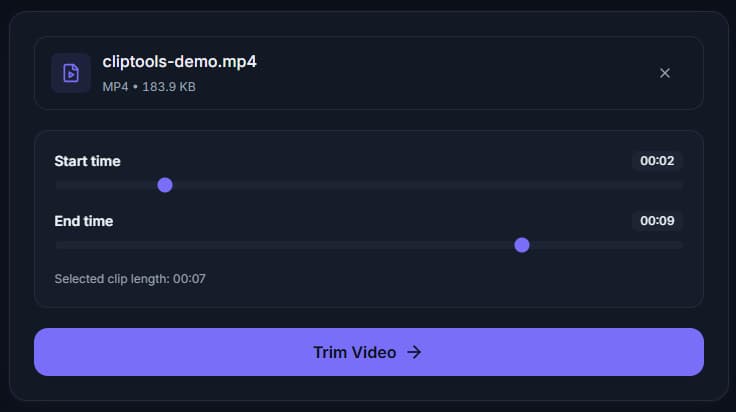
Open the ClipTools video trimmer with an MP4, MOV, or another supported file. The browser processes the video locally and keeps the original file on your device.
- Select your video and wait for the two sliders to appear.
- Set Start to 0:02 and End to 0:09. Check the clip length shown below the sliders.
- Click Trim video, download the MP4, and play the first and last seconds to check the picture and audio.
Can you trim a video without losing quality?
Stream copy keeps the original encoded frames. Where a clip can start depends on the keyframes in the source. ClipTools re-encodes to MP4 for a precise cut. Keep the original file on hand if you expect to do more editing later.
To change the framing, use the video cropper. To make the original clip first, learn how to record your screen with audio.