How to Record Your Screen with Audio on a Phone or Computer
How do you record your screen with audio on a phone or computer? Pick your audio source before you start. The microphone captures your voice. App or tab audio captures music, dialogue, and sound effects. Make a short test recording and listen to it with headphones.
How to record your phone screen
On iPhone, open Control Center and tap Screen Recording. To capture your voice, touch and hold that control, turn on Microphone, and tap Start Recording. Tap the red recording indicator to stop. You can find the saved video in Photos.
On Android, swipe down twice and tap Screen Record in Quick Settings. Choose an available audio source. Some phones let you capture device audio and the microphone together. To end the recording, open your notifications and tap the recorder notification.
How to record your screen on a computer
| Where to record | How to start and choose audio |
|---|---|
| Windows 10 or 11 | Open the app or game. Press Win + Alt + R to record with Xbox Game Bar. Press Win + Alt + M to toggle the mic. |
| An area on Windows 11 | Open Snipping Tool, select Record, and choose an area. Check the audio settings on the recording bar. |
| Mac | Press Shift + Command + 5 to record the whole screen or an area. Choose a microphone in Options to record narration. |
How to record browser tab audio
Open the ClipTools screen recorder in desktop Chrome. Follow these steps to capture a tutorial, demo, or presentation in one browser tab.
- Enable audio and click the start button.
- In the sharing dialog, select the Chrome tab and enable the option to share its audio.
- Stop recording and download the WebM. Entire-screen audio depends on your browser and operating system.
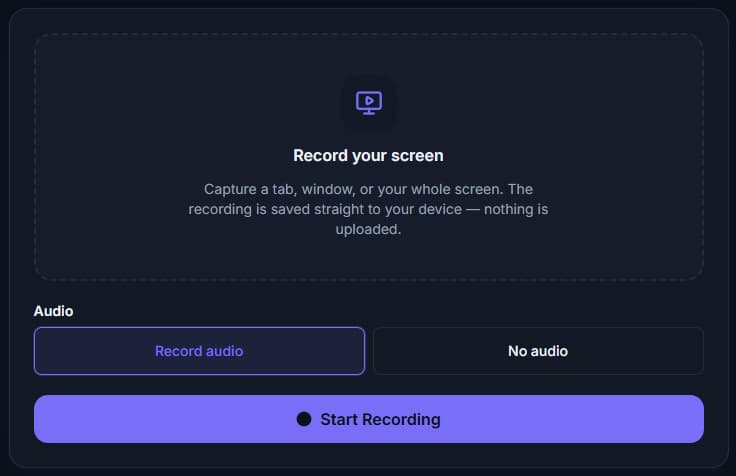
If the browser supplies no audio track, ClipTools may ask for microphone access. To record narration over app sound, use a recorder that can capture both sources at once.
What to check if your screen recording is silent
- If your voice is missing, check microphone permission and make sure you picked the right input device.
- If the app sounds are missing, check the audio sharing option and test a single tab. Some apps block audio capture.
Run a microphone test to check your voice. Once you have your recording, learn how to trim the video to cut out pauses.